iPhone & iPad
Tap Share, then Copy link. Downloads appear in Safari and the Files app.
 GalaxyFetch
Short-form Instagram video
Check a public Instagram Reel, choose an available video format, preview it, and save the MP4.

Checking source
Reading video information without downloading the media.
Checking available video qualities.
Choose before we transfer
Checking source
Reading video information without downloading the media.
Checking available video qualities.
Ready for a short while
Link expires in 15:00
Couldn’t prepare it
Simple process
Instagram Reel links usually contain /reel/ and identify one short-form video. Open the individual Reel before copying the address; a profile or Explore page is not a direct media link. GalaxyFetch checks the public post and shows only formats returned by the source.
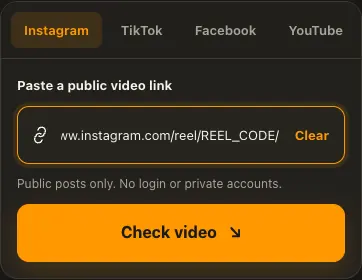
Open the public Reel and choose Share → Copy link.
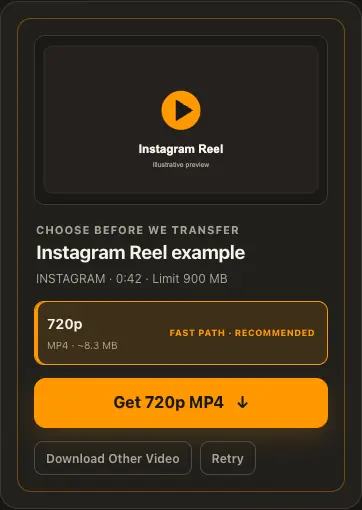
Paste the Reel URL and wait for the real format check.
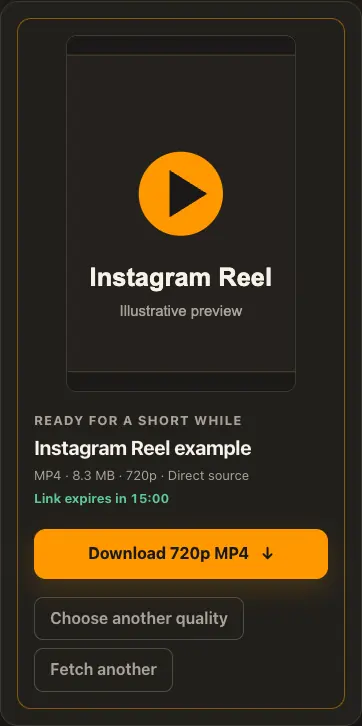
Select an available quality, preview it, and save before the link expires.
Screens are illustrative. Available media and delivery times depend on the public source.
A closer look
See the same three stages on a larger screen. Each example is captured from this website.
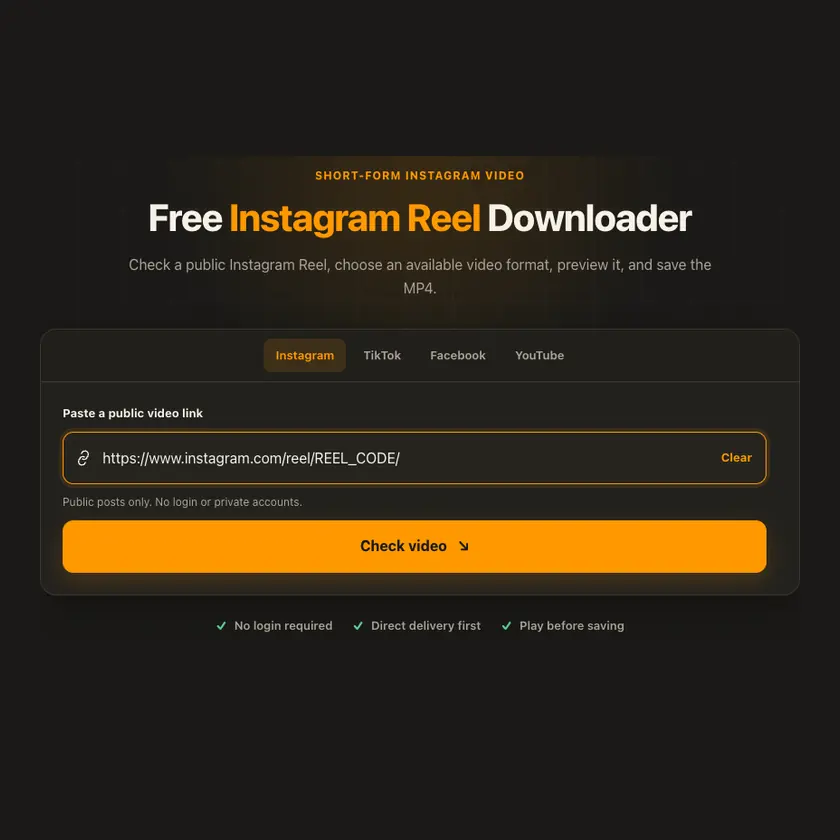
01 / Paste
Use the Reel’s own /reel/ address from Share, not the creator’s profile. That link gives the checker a single public item to inspect.
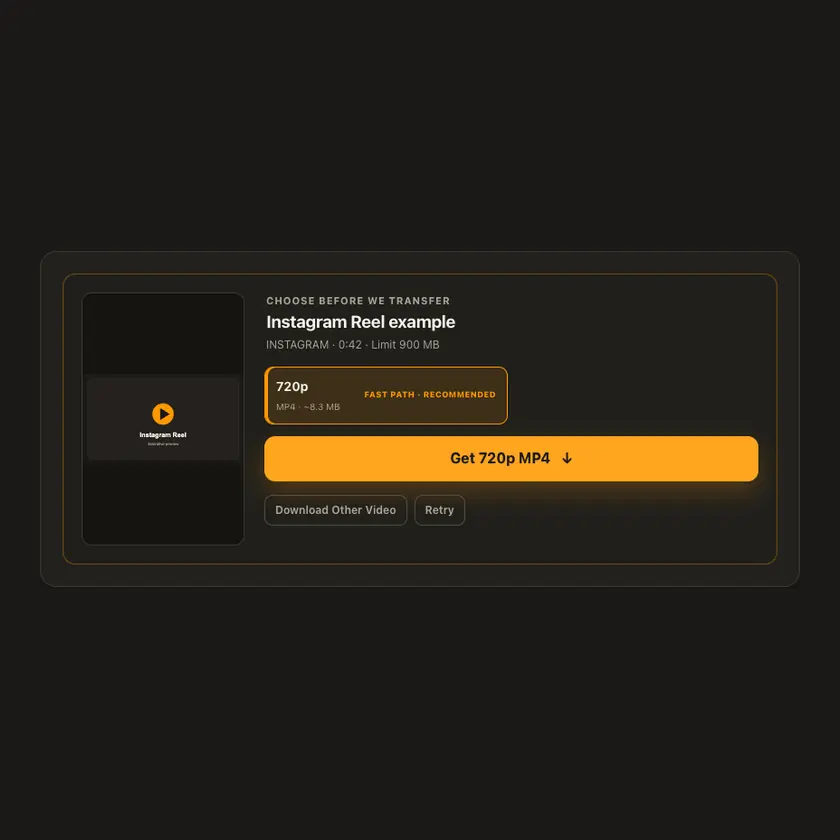
02 / Choose
Reels often arrive as a complete portrait MP4, but availability and sound are decided by Instagram. The displayed choice reflects the accessible file, not a promised enhancement.
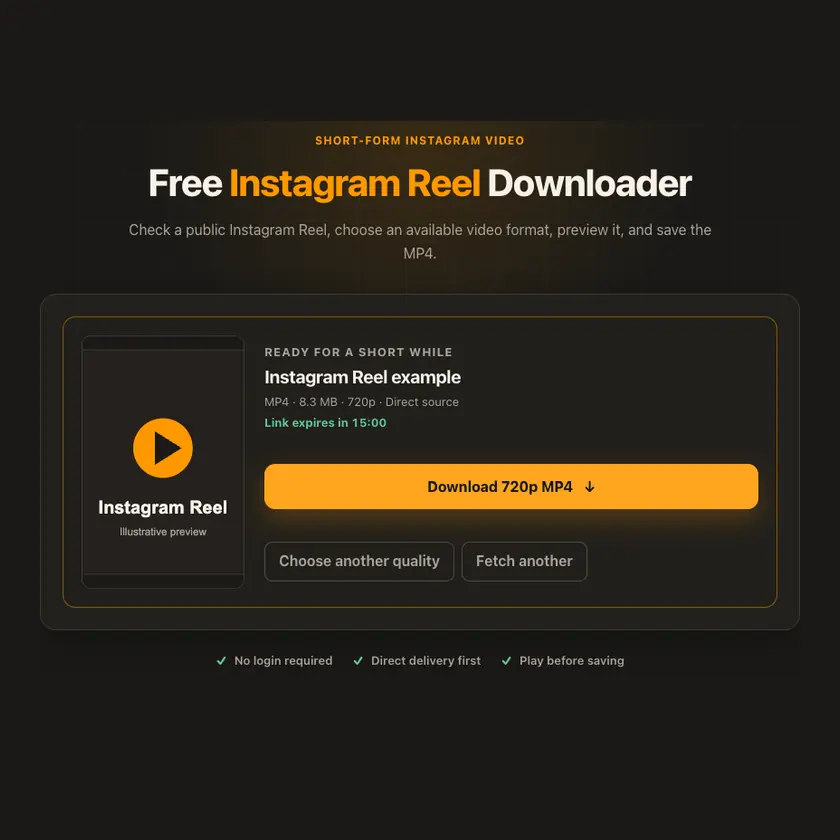
03 / Save
Preview the prepared Reel and save it while the link is valid. A private, removed, or login-gated Reel will stop at the source check instead of showing a fake download.
Transparent by design
A complete public MP4 can take a verified source or edge path. If replay needs protected headers, a streaming proxy may be used. Quality is never increased beyond the source.
Works everywhere
On iPhone or Android, open the Reel, tap Share, then Copy link. On desktop, open the Reel and copy the address from the browser. If the Reel is private, removed, or requires an account, GalaxyFetch cannot access it.
Tap Share, then Copy link. Downloads appear in Safari and the Files app.
Tap Share → Copy link. Find the finished MP4 in Downloads or your browser.
Open the individual post, copy its address, then check your Downloads folder.
Why choose this tool
The page is dedicated to Reel links, shows source-available choices, and explains when a source restriction prevents preparation.
Supported platforms
Public Instagram Reel links on instagram.com or supported share hosts; not private Reels, Stories, or account archives.
Frequently asked questions
A Reel normally uses an Instagram /reel/ URL. A feed post often uses /p/. Both may contain video, but the link format and media returned by Instagram differ.
When Instagram exposes a complete compatible MP4, it contains the audio included in that source. Muted or licensed audio may be unavailable.
No. GalaxyFetch handles only media that the source exposes publicly without an account. It never asks for your password, session cookie, or private-profile access.
No. Save only media you own or have permission to use. Copyright and the source platform rules still apply.
Desktop browsers normally save to Downloads. Android uses Downloads or the browser download list. On iPhone and iPad, check Safari Downloads and the Files app.
The post may be removed, restricted by region or age, require a login, or the source may temporarily refuse automated access. A public-looking page is not always a public media file.
A prepared link is short-lived, normally about 15 minutes. If it expires, check the original public post again for a new link.
Complete source files may use direct, edge, or proxy streaming. Formats that need merging may use a private, short-lived storage object. The exact route depends on source behavior and current configuration.
More downloaders
Other formats from Instagram and similar tools on supported platforms.
Choose your preferred language for navigation and content.