iPhone & iPad
Tap Share, then Copy link. Downloads appear in Safari and the Files app.
 GalaxyFetch
Public YouTube captions
Find a public video’s available captions and download the language you need as SRT or VTT.

Reading available options from the public video.
Captions found
Automatic captions can contain errors. Auto-translations are not offered.
Download subtitlesSimple process
Paste a public watch or Shorts link. The tool checks which original-language caption tracks the source exposes and labels automatic captions before you save one.
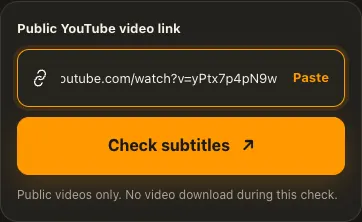
Copy the link of one public YouTube video with captions.
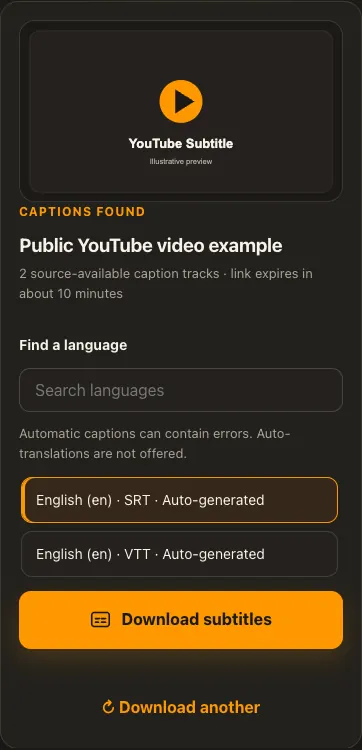
Check the link and search the languages the source provides.
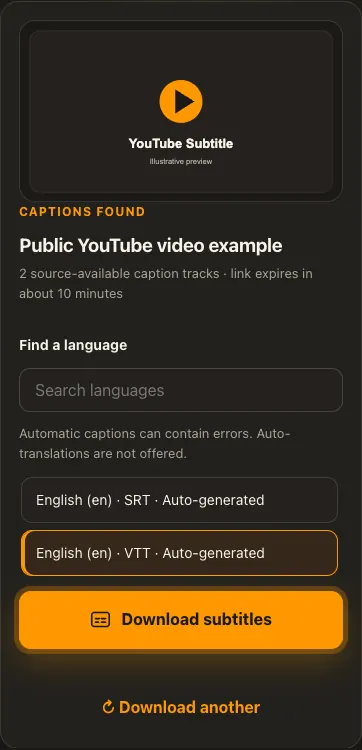
Select SRT or VTT and save that caption track.
Screens are illustrative. Available media and delivery times depend on the public source.
A closer look
See the same three stages on a larger screen. Each example is captured from this website.
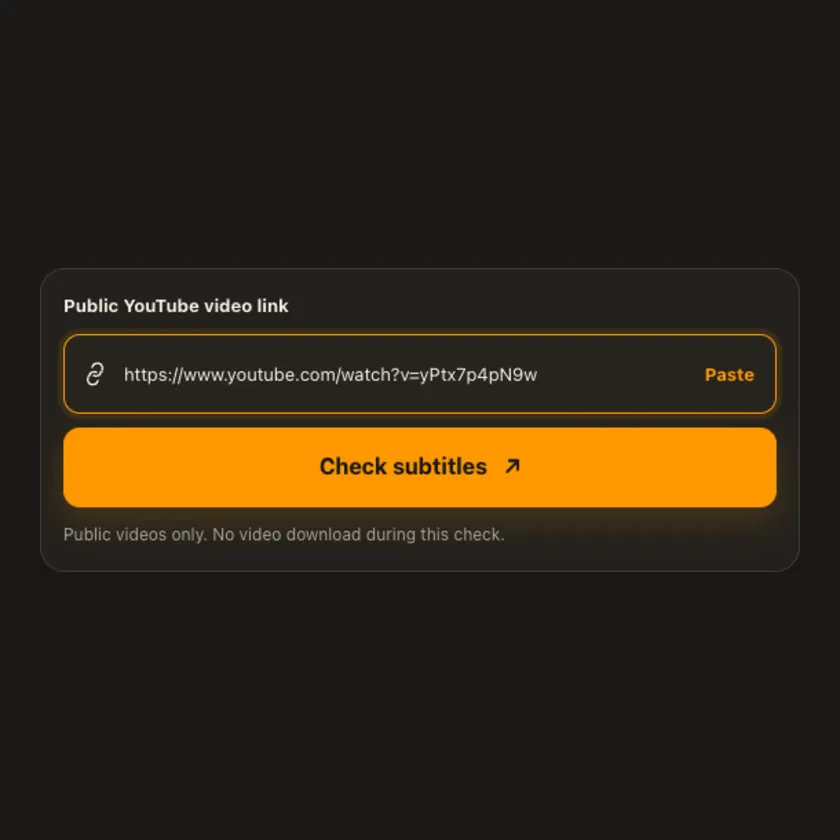
01 / Paste
Copy an individual watch, Shorts, or YouTube share link. A playlist or channel page is not a single caption source, so open the particular video first.
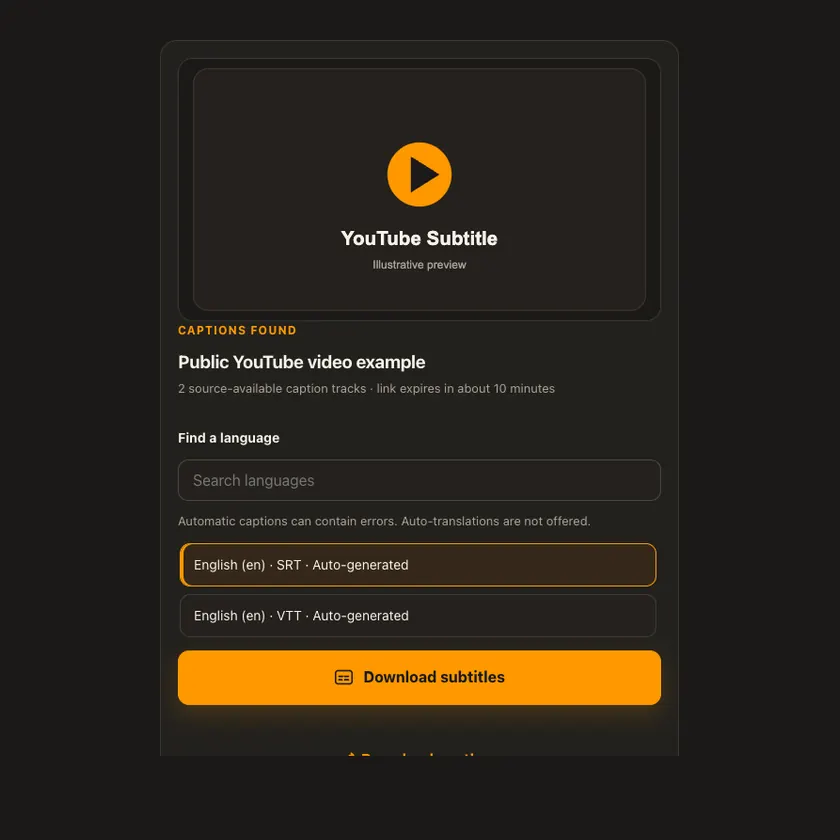
02 / Choose
The results distinguish creator-provided captions from automatically generated tracks. YouTube currently rejects many auto-translations, so the tool avoids presenting those as ready downloads.
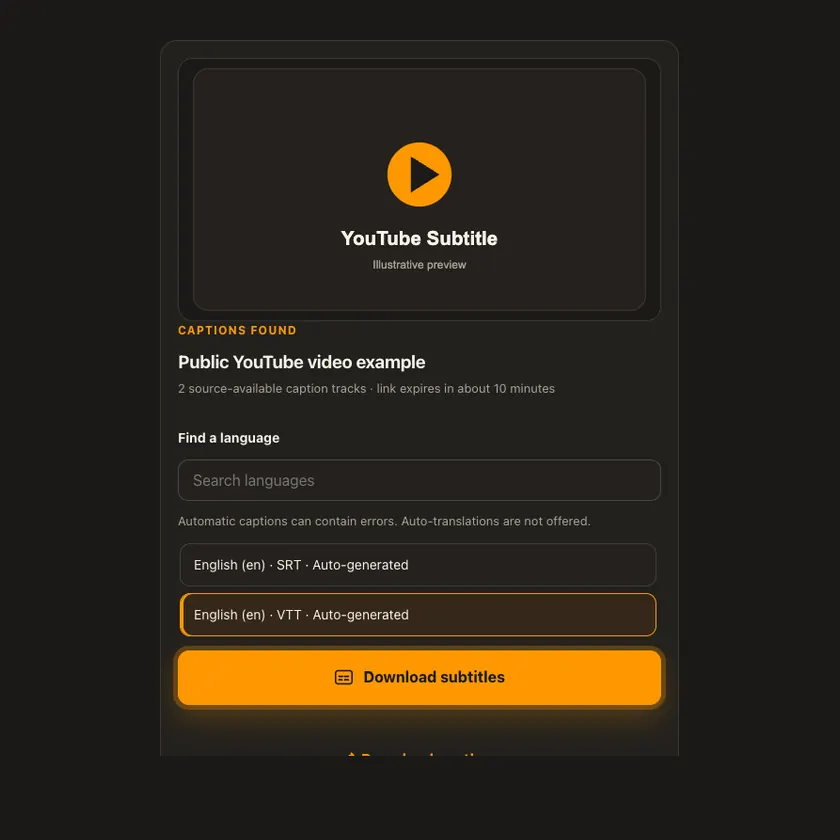
03 / Save
Download the selected text file and open it in a compatible editor or player. Automatic captions can contain transcription and timing errors, so review them before publishing.
Transparent by design
Caption checking downloads no video bytes. A selected caption file is streamed through a size-limited endpoint; no R2 object, video merge, or conversion job is created.
Works everywhere
Choose a listed language and SRT or VTT format. SRT works in many video editors; VTT is useful for web video. The browser saves a small text file, not the YouTube video.
Tap Share, then Copy link. Downloads appear in Safari and the Files app.
Tap Share → Copy link. Find the finished SRT or VTT in Downloads or your browser.
Open the individual post, copy its address, then check your Downloads folder.
Why choose this tool
The tool shows source-provided language and format choices, distinguishes automatic captions, and excludes auto-translations that YouTube currently rate-limits.
Supported platforms
Public YouTube watch videos and Shorts when YouTube exposes SRT or VTT captions. Private, members-only, blocked, live, or caption-free videos may have no downloadable track.
Frequently asked questions
At testing time, it exposed English auto-generated SRT and VTT, but no creator-uploaded captions. Source availability can change.
Not always. Speech recognition and automatic translation can mishear words or shift timing. Review the file before reuse.
Both contain timed captions. SRT is common in video editors, while VTT is designed for HTML video and can support extra cues.
No. Only the chosen small caption file is fetched. Use the separate video downloader when you need the media itself.
YouTube currently returns rate-limit errors for many translated caption URLs. This tool shows original-language tracks rather than offering a download button likely to fail.
No. GalaxyFetch handles only media that the source exposes publicly without an account. It never asks for your password, session cookie, or private-profile access.
No. Save only media you own or have permission to use. Copyright and the source platform rules still apply.
Desktop browsers normally save to Downloads. Android uses Downloads or the browser download list. On iPhone and iPad, check Safari Downloads and the Files app.
The post may be removed, restricted by region or age, require a login, or the source may temporarily refuse automated access. A public-looking page is not always a public media file.
More downloaders
Other formats from YouTube and similar tools on supported platforms.
Choose your preferred language for navigation and content.