iPhone & iPad
Tap Share, then Copy link. Downloads appear in Safari and the Files app.
 GalaxyFetch
X / Twitter public media
Choose from the real cover variants X exposes for a public video post.

Reading available options from the public video.
Images found
Only source-available sizes and formats are shown. No upscaling.
Download thumbnailSimple process
Paste an individual public X video post. The image choices come from that video’s metadata, not enlarged copies made by GalaxyFetch.
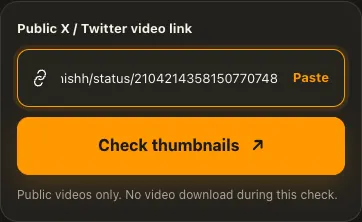
Copy a public X video post URL.
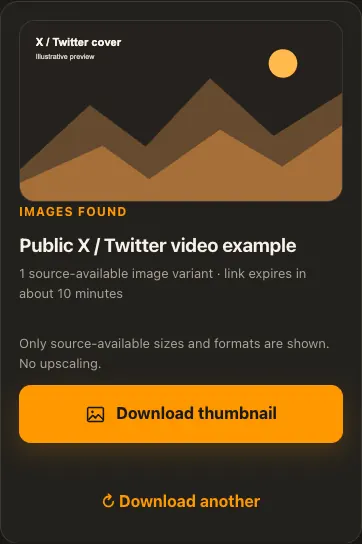
Compare the image variants reported for its video.
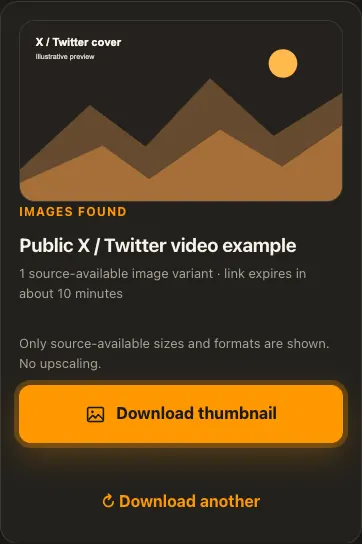
Select a cover and save the image.
Screens are illustrative. Available media and delivery times depend on the public source.
A closer look
See the same three stages on a larger screen. Each example is captured from this website.
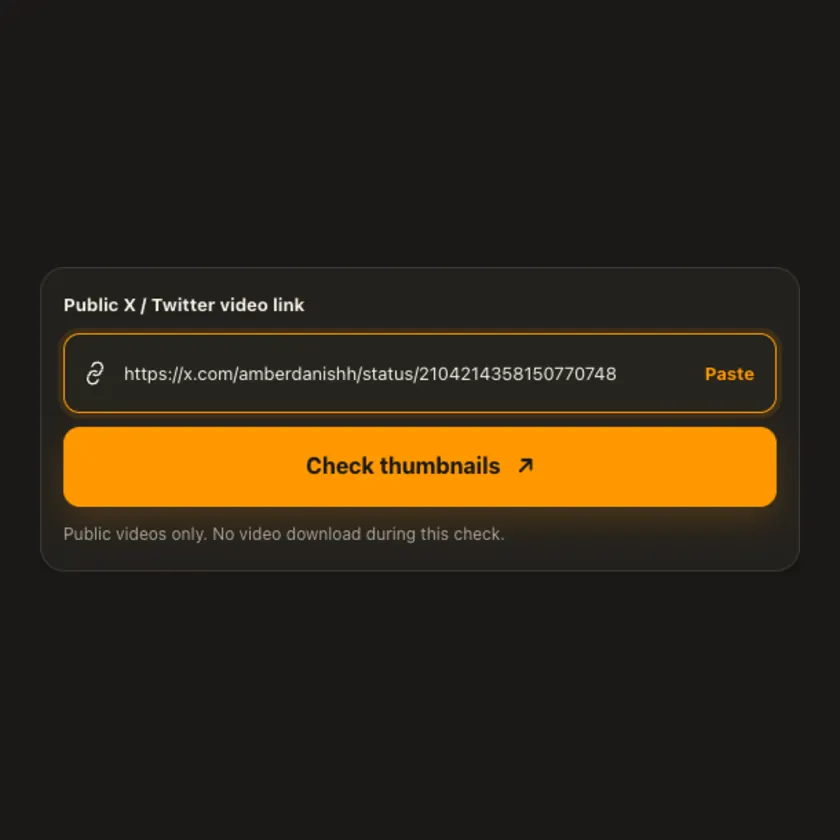
01 / Paste
Use a specific x.com or twitter.com status link containing an uploaded video. A profile URL or text-only post cannot be used as a video thumbnail source.
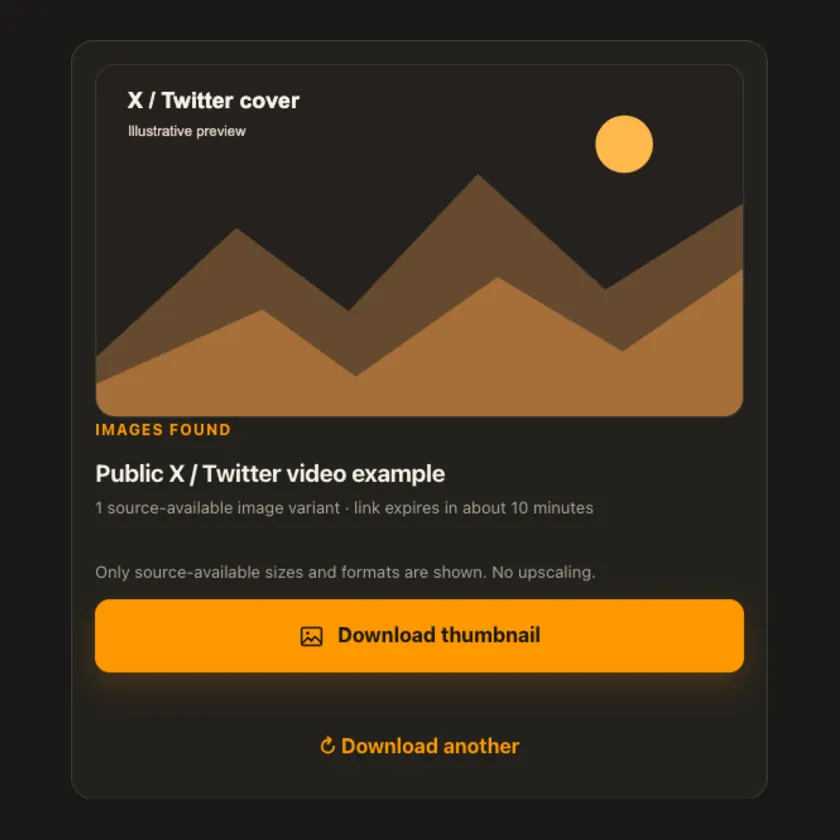
02 / Choose
Choose among source variants. The same pixel size may appear under multiple X names; this is shown honestly rather than advertised as extra quality.
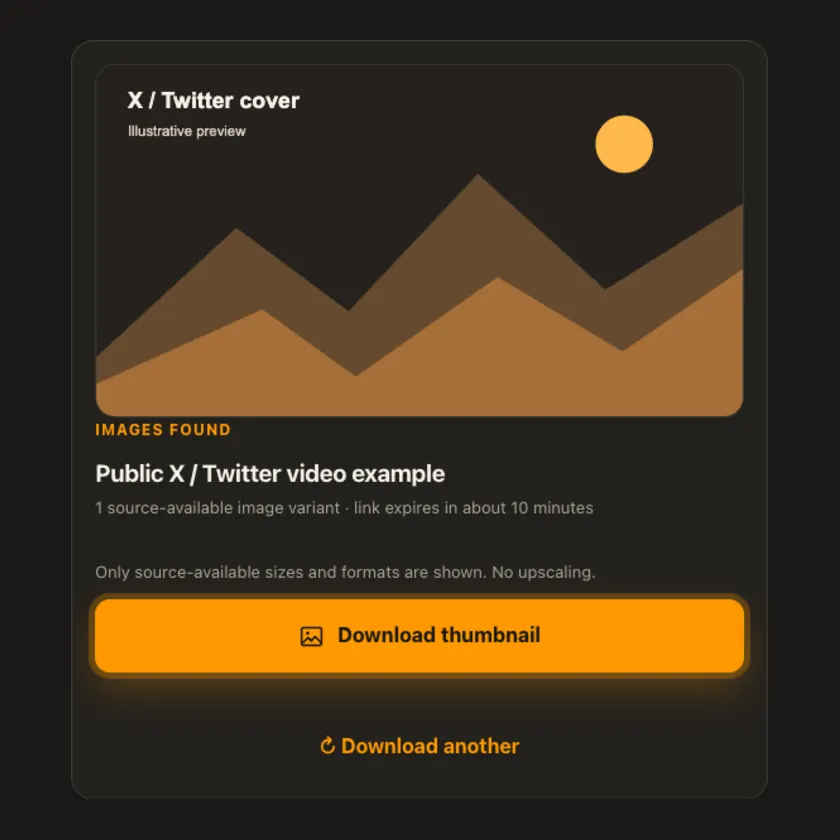
03 / Save
Preview the selected cover, then download the source image. The download route verifies a real image response and caps image bytes.
Transparent by design
Image downloads use a guarded, size-limited route. The video file is never pulled to create the cover.
Works everywhere
X can publish thumb, small, medium, large, and original URL variants. Several names may resolve to the same dimensions, so the displayed dimensions are the source-reported ones.
Tap Share, then Copy link. Downloads appear in Safari and the Files app.
Tap Share → Copy link. Find the finished image in Downloads or your browser.
Open the individual post, copy its address, then check your Downloads folder.
Why choose this tool
The tool checks the post ID against the extracted video and only offers image URLs on X’s image CDN.
Supported platforms
Public x.com and twitter.com status posts exposing a video cover. Protected posts and cards without a video cover are not supported.
Frequently asked questions
No. X sometimes serves the same dimensions for original, large, and medium. The reported pixel size is shown.
Use the X GIF downloader for a playable GIF. This tool saves only the video cover image.
No. Only the selected image is transferred.
No. The video cover must be publicly visible without a login.
No. GalaxyFetch handles only media that the source exposes publicly without an account. It never asks for your password, session cookie, or private-profile access.
No. Save only media you own or have permission to use. Copyright and the source platform rules still apply.
Desktop browsers normally save to Downloads. Android uses Downloads or the browser download list. On iPhone and iPad, check Safari Downloads and the Files app.
The post may be removed, restricted by region or age, require a login, or the source may temporarily refuse automated access. A public-looking page is not always a public media file.
More downloaders
Other formats from X / Twitter and similar tools on supported platforms.
Choose your preferred language for navigation and content.