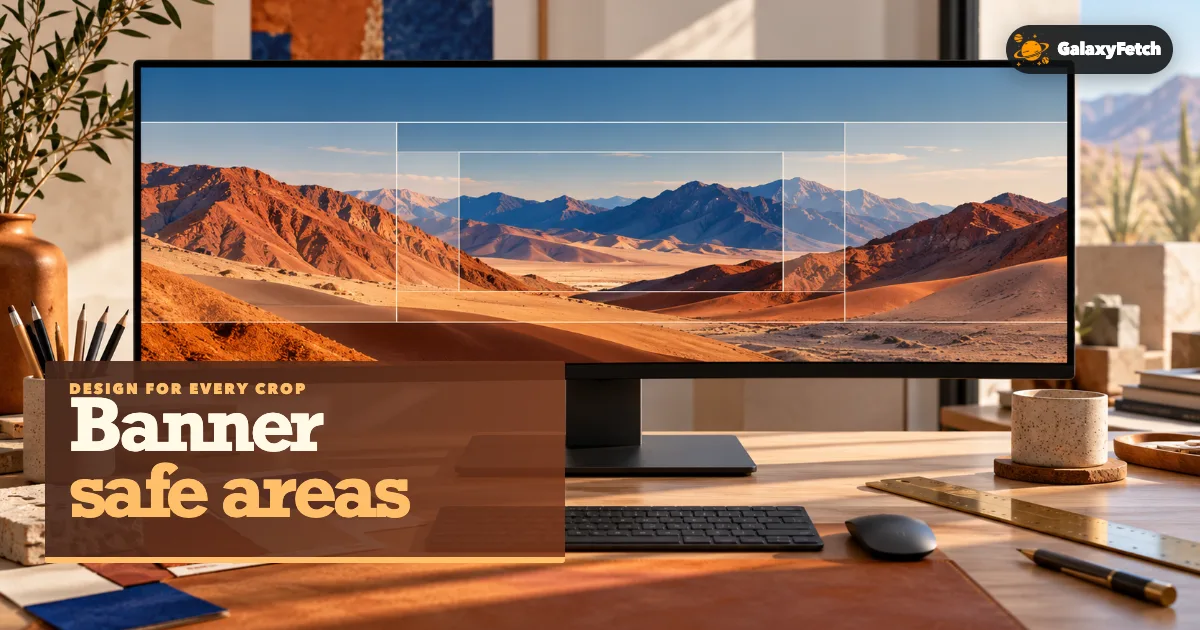
A YouTube channel banner is one image shown in several shapes. On a television, a viewer may see far more of the original canvas than a phone user does. On a narrow screen, the sides can disappear while the central strip remains. This makes banner design less about finding one magic width and more about deciding what must survive every crop. It also explains why a banner you save from a public channel may look different from the version you see in a browser header.
This guide is for creators auditing or recovering their own artwork and for people who have permission to save a public channel image. It covers the current official dimensions, a practical safe-area method, how to inspect a downloaded rendition, and what a downloader cannot recover. The goal is to stop mixing three separate things: the recommended upload canvas, the visible crop on a particular device, and the actual file returned from a public channel page.
The canvas is larger than the visible phone header
YouTube's official channel-branding guidance recommends a 2560 × 1440 pixel banner for broad device coverage. The same guidance lists a minimum upload size of 2048 × 1152 pixels with a 16:9 aspect ratio. At that minimum size, it identifies a central text-and-logo safe area of 1235 × 338 pixels. These are publishing recommendations for the channel owner. They do not guarantee that a public banner downloader can retrieve a 2560 × 1440 copy from every channel.
The broad canvas gives television and other large displays room to show artwork beyond the center. Smaller devices may crop those outer areas. If you place a logo, channel name, or schedule close to an edge, it may look fine in a full desktop image and vanish on a phone. Decorative elements can live outside the safe area; essential information should remain central. The exact preview in YouTube Studio is more authoritative for your channel than a diagram drawn from memory.
Do not confuse the recommended file size with a browser screenshot. A screenshot of a desktop channel header captures a crop at one viewport width, possibly with page text and buttons over it. It is not the original banner asset. A public image rendition may be more useful for a permitted design review because it separates the image from the surrounding interface, but it can still be resized or transformed by YouTube's delivery system.
A safe-area workflow that a team can repeat
Start a banner design at the current recommended upload dimensions shown in YouTube Studio or its official help. Add a central guide for critical text and the logo. Keep important words well inside the guide rather than touching its boundary. Place photographs, textures, or patterns in the outer regions where cropping is acceptable. The canvas should still look intentional on a large screen, but no essential instruction should depend on those outer regions.
Preview the design at several widths. A useful test is to cover both outer sides with temporary rectangles, leaving only the center. If the channel identity is still clear, the layout is robust. Then preview a wide desktop crop and the full television canvas. Do not assume that a single wide screenshot on your laptop represents the phone experience. Studio's preview is designed for this purpose; use it before publishing.
Check contrast, not only placement. Text placed over a face or a busy photograph may be visible in a large editor and unreadable in a compact mobile header. A subtle dark overlay or a simpler background behind the central message can help. Avoid tiny social handles or several lines of schedule text; they can become illegible even when technically inside the safe area. The banner should identify the channel before it tries to explain everything the channel does.
If a team edits the banner, maintain a source file with guides, artwork, and licensed image information. Export a final upload version separately. The source file is the master. A downloaded public banner is a delivered copy useful for auditing or emergency recovery, not a replacement for editable layers and high-quality original photos. Save a version number and date so a later teammate knows which artwork was actually published.
Get the right public channel address
Open the channel page itself and copy its public URL. A handle address identifies a channel; a watch page identifies one video; a playlist identifies a collection. A banner tool needs the channel. If you arrived through a search result, confirm the handle and channel name before saving anything. Channels with similar names may have different art, and a fan account may reuse another creator's branding.
When the channel recently changed its banner, public caches can disagree for a while. Compare the channel page on a phone and a desktop browser. If the new image appears in Studio but the old one appears publicly, wait for the platform's update to propagate. Repeated downloads cannot force a source cache to refresh. Keep the old and new files named with dates if you are documenting a rebrand.
For your own channel, use YouTube Studio to find the current uploaded asset and settings before falling back to a public copy. If you still have the original design project, that is the best archival source. Public retrieval is especially useful when you are auditing a competitor with permission, checking how a client's published banner looks, or recovering a visible rendition after an internal file was misplaced.
Save an available banner rendition
Paste the public channel URL into the banner tool, not a video watch address.
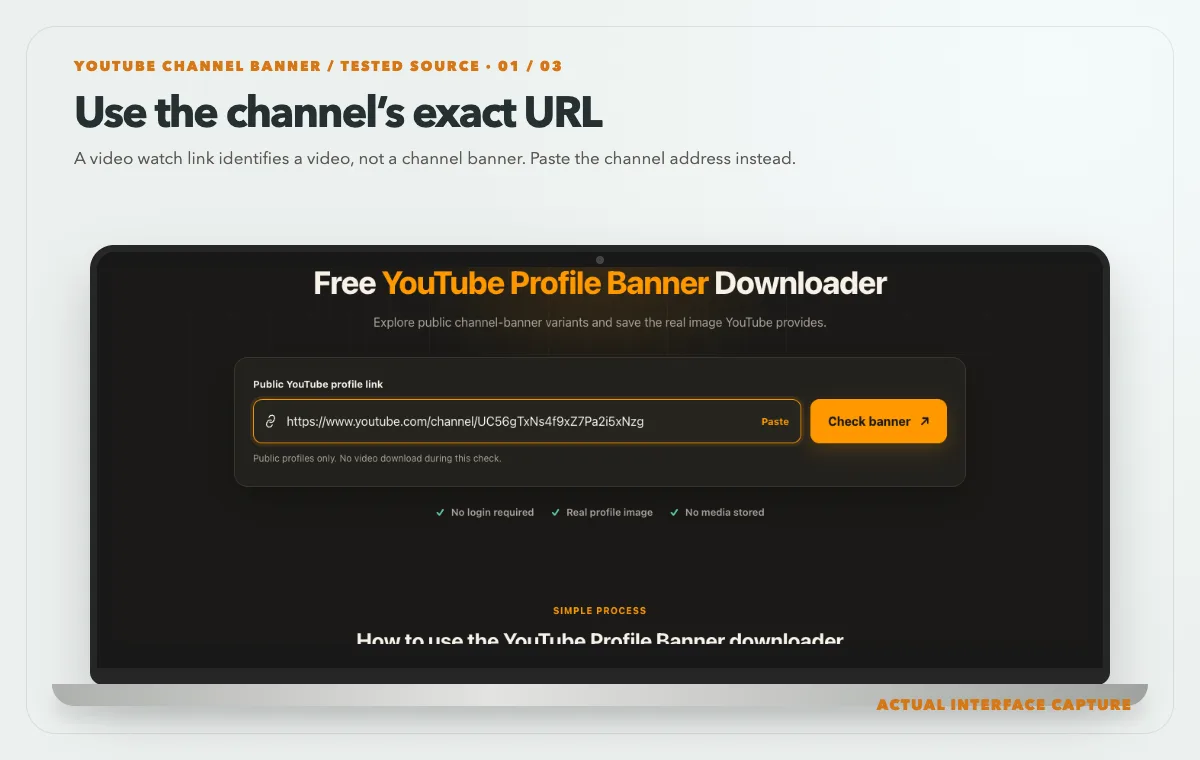
A video watch link identifies a video, not a channel banner. Paste the channel address instead. Device mockup contains an actual tool-interface capture from the tested public sample link. Compare the actual display-crop choices with the full-artwork option; do not confuse a wide crop with the upload master.
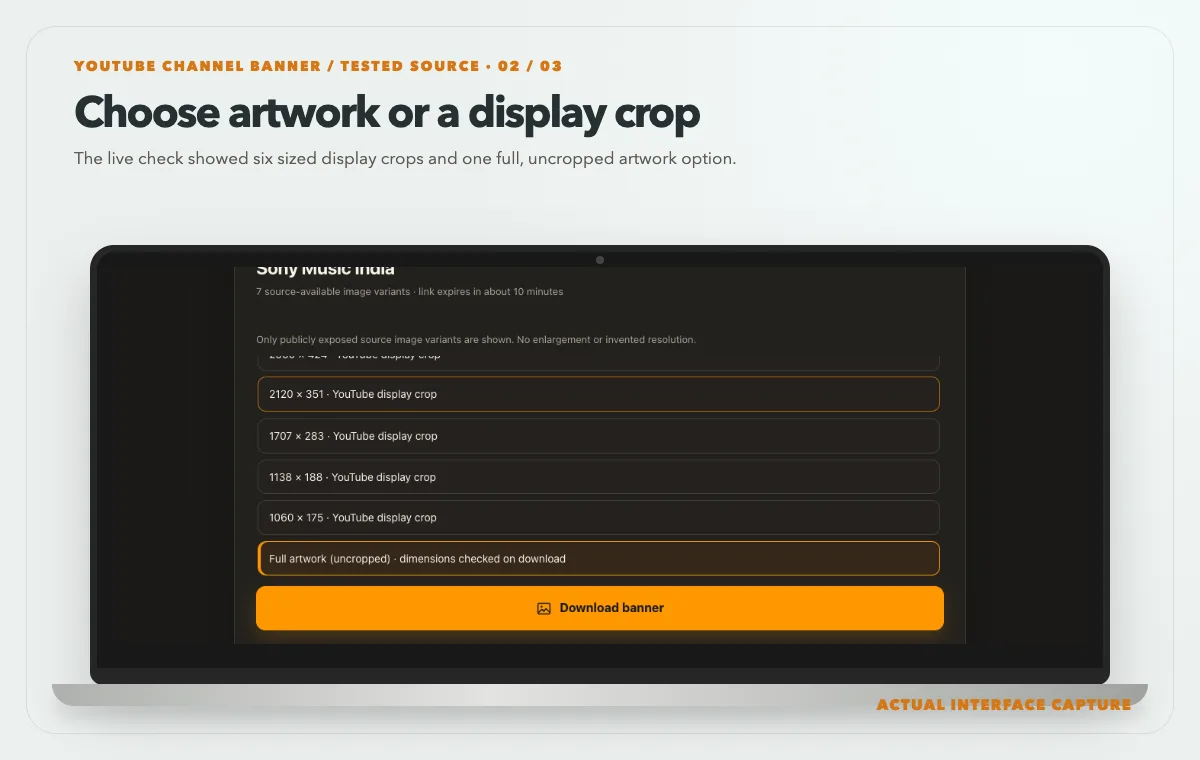
The live check showed six sized display crops and one full, uncropped artwork option. Device mockup contains an actual tool-interface capture from the tested public sample link. Choose a permitted source rendition and use Download banner, then inspect its text and logo at several screen widths.
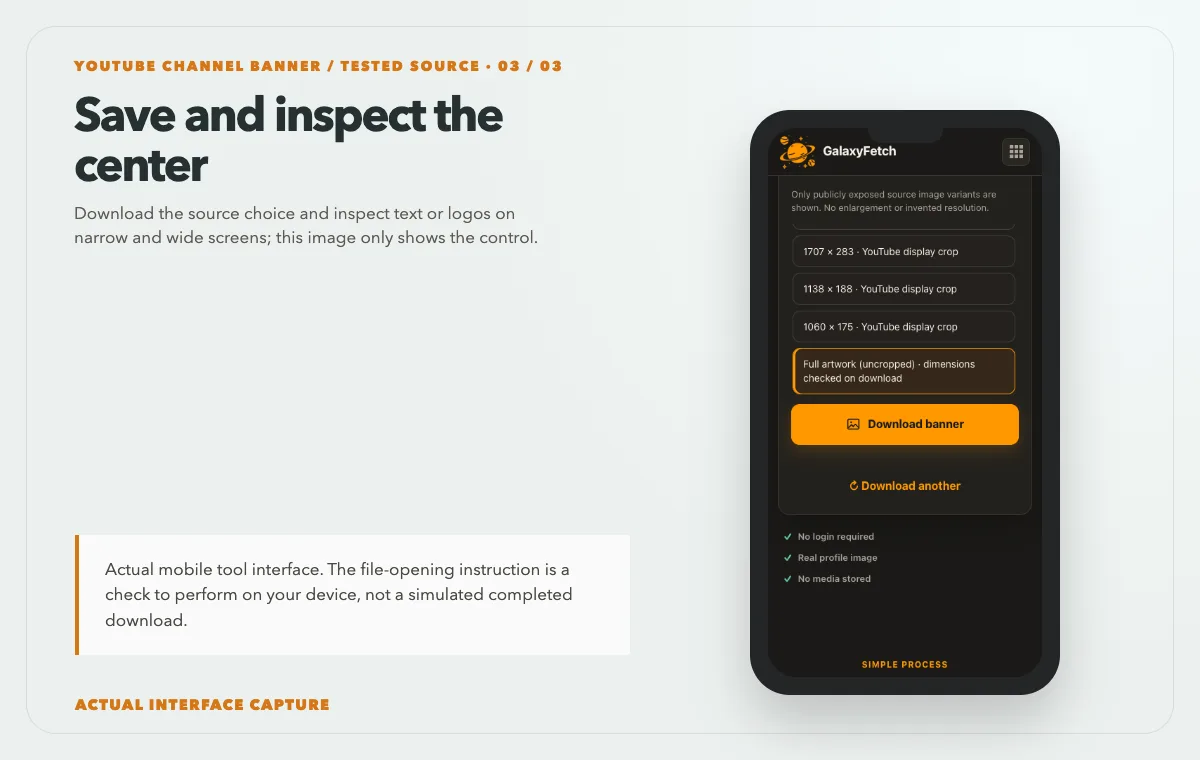
Download the source choice and inspect text or logos on narrow and wide screens; this image only shows the control. Device mockup contains an actual tool-interface capture from the tested public sample link.
Open the YouTube Profile Banner Downloader, paste the public channel link, and check the returned image. Review its preview and real pixel dimensions. Save the most suitable source-available version for your permitted task, then open it locally. Compare its aspect ratio and visible content with the channel page. If the tool offers multiple renditions, do not assume the largest is the uploader's original file; it may be a platform-processed copy.
I checked the banner page on 1 October 2026 with the public Sony Music India channel URL. It returned seven source choices: six wide display crops, including 2276 × 377 and 2560 × 424 pixels, plus a full-artwork option whose dimensions are checked on download. Neither listed wide crop is the 2560 × 1440 upload canvas described in official guidance. The screenshots show the actual choices and download control, not a completed saved file or the creator’s editable design master.
Save a provenance note with the image: channel URL, handle, date, delivered width and height, and whether it appeared current. If you are documenting a channel's design over time, keep the retrieval date in the filename. A file named only banner.jpg becomes ambiguous as soon as the creator changes the artwork. If it is your own brand, keep the source project and upload export beside the downloaded copy rather than letting one replace the others.
If the downloaded image is smaller than you expected, check the actual dimensions and source quality. Enlarging it to 2560 × 1440 for a new upload will not recover detail. Use your original design file or ask the owner for one. A downloader should not present an upscaled file as if it were the original just because it matches the recommended upload canvas.
Diagnose crops without blaming the wrong file
Suppose a saved banner shows a person at the far left, but the mobile channel header does not. That can be normal cropping. The downloaded image may contain the full delivered canvas, while the phone displays only a central slice. Conversely, a saved file that lacks the person even at full view may be a cropped rendition. Compare intrinsic dimensions, not only how the image is drawn inside a page.
Open the image in a viewer that can zoom to 100%. Look for soft text, jagged lines, and compression artifacts around gradients. A wide banner can look sharp when shrunk into a header even if the source file has limited detail. If your purpose is a client audit, note both the file's intrinsic quality and how it looks on real devices. A channel visitor experiences the latter; a designer recovering artwork needs to know the former.
The file format matters too. JPEG may be appropriate for photographic art; PNG or WebP may preserve different properties. Do not change an extension to make a program accept the image. Convert a working copy with a trusted editor while retaining the downloaded source. If the asset includes transparent areas, inspect them against light and dark backgrounds, although many banner deliveries are flattened by the source.
Another common mistake is measuring a browser screenshot rather than the banner itself. A 2560-pixel screenshot of a desktop page is not proof of a 2560-pixel banner. It may include interface elements and a much smaller image stretched across the viewport. Use the saved asset's file information to report dimensions.
Desktop, mobile and TV checks
On desktop, view the channel at a normal browser width and then resize the window. Note whether the logo and essential text remain in view. Do not rely on the browser's zoom setting as a substitute for a different device width. Zoom changes more than the crop and can affect layout. A responsive test should use actual viewport widths.
On a phone, check both portrait and landscape if the platform supports those presentations. The narrow view makes central placement critical. A schedule or call to action that only appears at the edge of the full banner will likely be missed. If your design needs a link, put the actual destination in the channel's supported link area; a URL painted into a cropped banner may be unreadable or not clickable.
On television or a large display, the artwork beyond the center can become visible. Check that it does not show unfinished guides, stock-watermark artifacts, or accidental empty areas. A design that passes the phone crop can still feel sparse or unbalanced on a large screen. The right approach is layered: central information first, then a complete wide composition around it.
Use YouTube Studio's current preview before you publish your own banner. Official requirements can change, and your channel's interface is the final place to check how the upload will be cropped. After publishing, compare the public result on at least one phone and one desktop browser. Keep the previous export until the new version is confirmed.
Troubleshooting common banner problems
The tool says the URL is unsupported. Confirm that it is a public channel address, not a video, playlist, search page, or image CDN link. Open it and check the channel handle before trying again. A short redirect may need to resolve to a channel page.
The returned image is the wrong channel. Stop and verify the final URL, handle, and channel name. Similar display names are common. Do not rely on the search result title alone. Use the channel's own public page as the source.
The image is old. A recent channel update may not have propagated across public surfaces. Compare Studio, the public page, and another device. Keep dated copies while you wait. Rechecking later is more sensible than repeatedly downloading the same cached rendition.
The phone crops important text. That is a design problem, not a download failure. Move the text toward the center in your source project and use the current safe-area preview. Do not stretch the public copy to “fix” a crop; it will only distort the artwork.
The downloaded file has fewer pixels than 2560 × 1440. The official figure is an upload recommendation, not a guarantee about every publicly retrievable rendition. Save the best genuine option offered, or obtain the original from the channel owner. Upscaling cannot recreate detail.
The link expired. Run a fresh public channel check and save the image promptly. A temporary result URL is not a permanent image library. The local file you already saved remains on your device.
Permission and attribution
A channel banner may combine photography, illustration, a logo, and licensed typefaces. Public visibility does not grant permission to copy it into your own channel or commercial design. If the artwork is yours, check the rights in commissioned elements before republishing a recovered file. If it belongs to someone else, use it only within your permission or a valid legal exception, and avoid implying sponsorship or affiliation.
For editorial analysis, keep the channel URL and date with the image. An attribution can help readers understand whose design they are seeing, but attribution alone may not replace permission. Public-domain or Creative Commons claims should be checked against the actual artwork. This is practical guidance, not legal advice. For an important commercial use, ask the rights holder.
The banner tool is intended to return a short-lived private result to the requester, not to create a public gallery of channel art. That does not make the source image free to reuse. It also does not mean every processing path avoids temporary infrastructure. Keep confidential original brand files in your own controlled archive.
Check the banner on every screen
| Screen | What may change | Review |
|---|---|---|
| Mobile | Side areas may be cropped | Keep essential text centered |
| Desktop | More horizontal artwork may be visible | Check balance around the central content |
| TV or wide display | A wider area can appear | Check background and edge quality |
Read the next guide
Pair the header with a readable channel icon.
Need video artwork instead? See the thumbnail guide.
Frequently asked questions
What is the recommended YouTube banner size?
YouTube's current official help recommends 2560 × 1440 pixels for broad device coverage and lists 2048 × 1152 as a minimum upload size. Check the live Studio guidance before exporting, because platform requirements can change. These upload figures do not guarantee that a public downloader returns the same-size file.
What is the safe area for text and logos?
YouTube's official guidance gives a 1235 × 338 pixel central safe area at the minimum upload dimensions. The practical rule is to keep essential information comfortably in the center and verify it in Studio's device previews. Do not place critical text right against a guide boundary.
Why does the banner look different on my phone?
YouTube crops the wide artwork differently across devices. A phone may show only a central section while a television shows much more of the canvas. Check the full saved image separately from its displayed crop before deciding that the download is wrong.
Can I retrieve the exact file the creator uploaded?
Not necessarily. A public tool can save the rendition the source exposes. It may have been resized, recompressed, or converted. For your own channel, preserve the original design project and exported upload. For another channel, ask the owner if you need an original.
Can I use another channel's banner as a template?
You can study layout ideas, but do not copy protected artwork, logos, photos, or wording into your own brand without permission. A public image is not a free stock asset. Build your own design and use correctly licensed components.
Does a short-lived download link remove my saved file?
No. Expiration ends access through that temporary link. It does not erase an image you already saved locally. Keep your own backup and the source record if you need the file again.
Treat the banner as both a file and a layout
The best banner workflow has two checks. Measure the actual saved image so you know what file you obtained, then preview the artwork across devices so you know what visitors see. Keep the original design master if it is yours. Put essential information in the central safe area, use the surrounding canvas for atmosphere, and respect the rights of other channel owners when saving their art.