
If you made the video, the safest backup is the file you exported before uploading it. That original may hold a better picture, a higher-bitrate soundtrack, captions, and metadata that a copy served through YouTube no longer carries. Yet creators often discover the original is on a retired laptop, an old memory card, or a drive that was never backed up. In that situation, a copy of your published video is better than no copy at all. The key is to know which version you are saving and what you need it for.
This guide is written for someone backing up videos they uploaded or otherwise have permission to save. It is not a promise that a public download will recreate a lost editing project. A finished MP4 cannot restore separate camera clips, color adjustments, music stems, or a timeline. Think of it as a viewable recovery copy. If the original project still exists, protect that first. If it does not, make a careful copy, verify it, and document its limitations so nobody later mistakes it for the master.
Start with an inventory, not a download button
Before transferring a single file, list what you are trying to preserve. A channel may contain the public video, an unlisted version, a different cut uploaded privately, a custom thumbnail, caption files, and the project assets used to make it. A downloader that receives one public watch link can work only with that one accessible video. It cannot automatically give you every associated asset or the original pre-upload master. Inventory avoids the common problem of celebrating a recovered MP4 while the captions and thumbnail quietly disappear.
Write down the video title, watch URL, upload date, approximate runtime, and whether the video is public, unlisted, or private. Add the location of any known original export. A simple spreadsheet or text file is sufficient. If you have dozens of videos, group them by project or year and assign a consistent file name before downloading. For example, 2024-06-product-demo-final.mp4 tells you more than video (17).mp4. Keep the original YouTube URL in your inventory, not in an excessively long filename.
Ask what you will use the backup for. An archival copy should favor the best legitimate source available and be accompanied by the thumbnail and captions. A copy for quick review may be smaller. A video intended for a new edit needs the original camera or export file whenever possible. A public delivery copy has already been processed by the platform; even a 1080p option is not necessarily equivalent to your 1080p upload.
Check your own archives first
Look in the editing application's export folder, the project drive, and the cloud backup connected to the computer used for the upload. Search for both the video title and the shoot or export date; the filename may have changed between editing and upload. If you find a promising file, open it and compare the first minute, the ending, and one visually busy scene to the published video. Similar names are not proof that two cuts are the same.
Preserve the highest-quality original in a folder that is not synced destructively with a working project. Copy it to a second location. A backup on the same physical drive is vulnerable to the same drive failure. If the project contains licensed music or third-party footage, preserve the license documents with the media. Your right to keep the file and your right to publish a new version may be different questions.
If the original is gone, use your creator access before relying on a public link. YouTube Studio and Google's data export tools may provide account-owned downloads or broader exports. Availability and the exact file delivered can change, so check the current creator interface and read the options shown there. The official route has an important advantage: it is tied to your account and may include videos that a public-link tool cannot access. Keep account credentials inside the official Google interface; never enter them into a third-party downloader.
When a public copy is useful
A public copy is a fallback for a video that can still be viewed by anyone but whose original export you cannot find. The watch page proves the video is available; it does not prove that a particular MP4 quality exists. YouTube can serve a complete low-resolution file while offering higher resolutions as separate video and audio tracks. A tool may have to retrieve and combine those tracks. That takes longer and temporarily uses processing resources. It also means a higher displayed resolution is not automatically the sensible backup option if the source is unstable or the file is too large.
On 1 October 2026, I checked the current YouTube Video Downloader page and analyzed a public 28-minute test video. The checker offered MP4 choices at 1080p, 720p, 480p, 360p, 240p, and 144p; its 1080p estimate was about 610 MB. Those are the options and estimate for that one source, not guarantees for every video or exact downloaded byte counts. I did not transfer the 610 MB file for this check. The image in this guide is a real capture of the input interface, not a claim that the large file was downloaded.
To make a public recovery copy, open the YouTube Video Downloader, paste the URL of one video you uploaded, and choose the check control. Read the choices rather than accepting the first label. If the tool gives an estimated size, treat it as an estimate: source servers do not always provide an exact byte count before transfer. Select a quality that fits your available disk space and the site's current limit. Start preparation, keep the page open while it works, then preview the finished file if a preview is available. Save the result to a clearly named folder on your computer.
Do not start ten long downloads at once merely because the interface allows you to paste ten links in separate tabs. Your network, the source, and the processing service all have limits. Test one representative file first. If that file is playable and meets your needs, continue in small batches. This makes failures easier to diagnose and avoids filling your computer with incomplete or duplicate files.
Choose quality for the backup's purpose
The screenshots use a public demonstration video to show the real interface; they do not establish ownership or permission to download that recording. For your own backup, substitute the URL of a video you uploaded or are authorized to save. In the demonstration check, all six available MP4 qualities required merging, so no instant direct MP4 was promised.
Find the individual watch link of a video you own or have permission to save, then check that exact address.
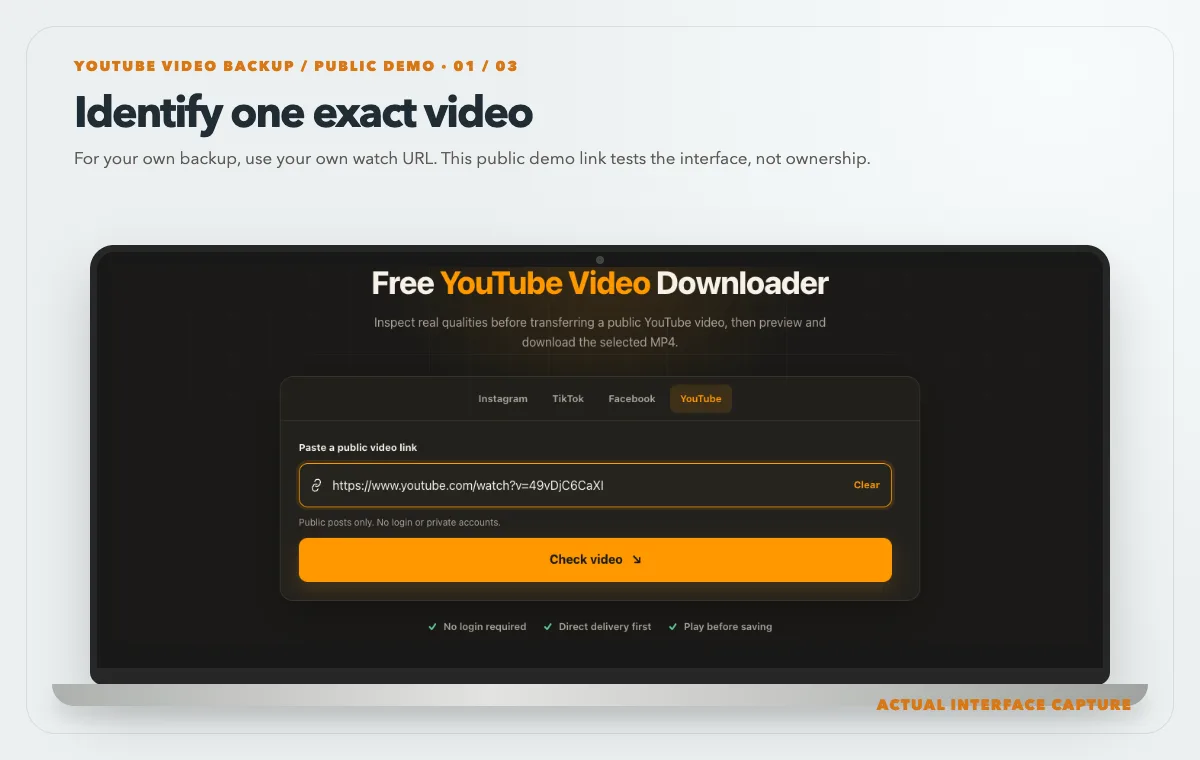
For your own backup, use your own watch URL. This public demo link tests the interface, not ownership. Device mockup contains an actual tool-interface capture from the tested public sample link. Compare the real size, resolution and merge requirement of each offered rendition before selecting one.
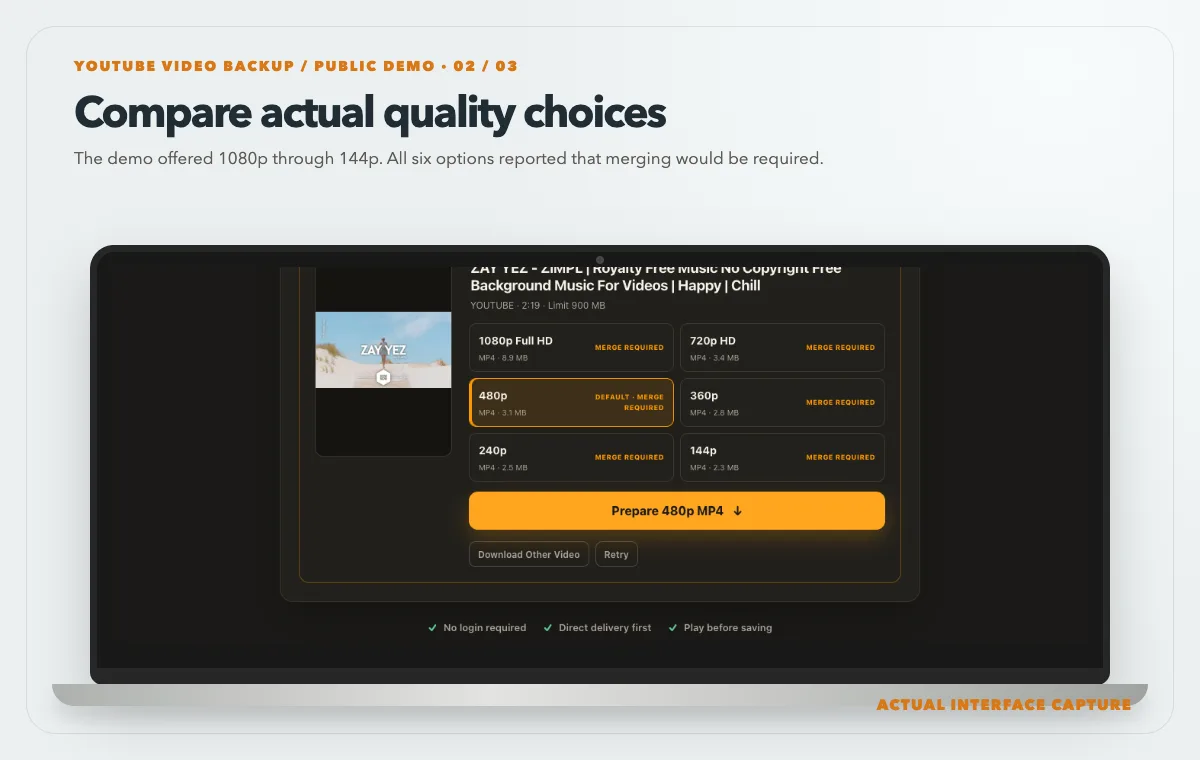
The demo offered 1080p through 144p. All six options reported that merging would be required. Device mockup contains an actual tool-interface capture from the tested public sample link. Choose the quality that fits your backup purpose and budget, then prepare it and verify the finished file locally.
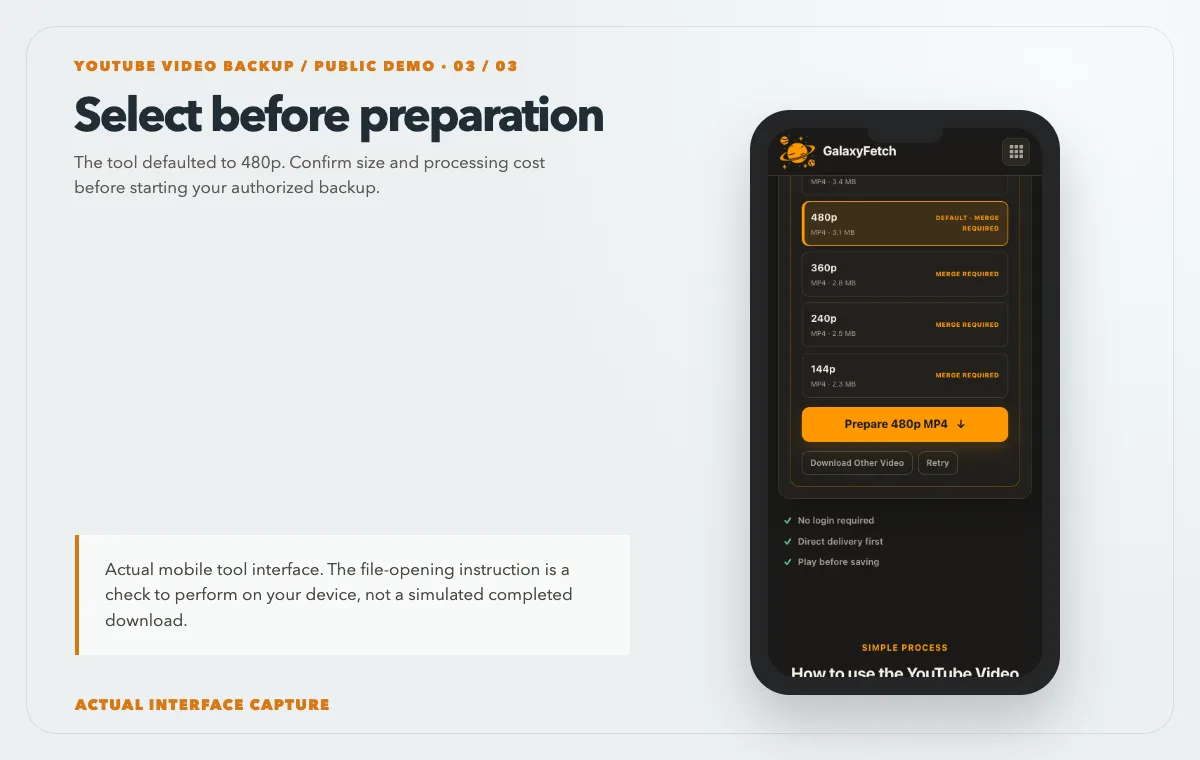
The tool defaulted to 480p. Confirm size and processing cost before starting your authorized backup. Device mockup contains an actual tool-interface capture from the tested public sample link.
Resolution describes the frame dimensions, not the whole quality of a video. A 1080p file can look worse than a carefully encoded 720p file if it has a much lower bitrate, poor source material, or repeated recompression. Compare motion, fine text, and dark areas in the preview rather than choosing by the largest number alone. For a training presentation, readable slides and audible speech may matter more than a larger frame. For footage you might reuse in an edit, preserving the best accessible video and audio matters more.
Pay attention to the container and codec. MP4 is a familiar container, but an MP4 can still contain different video and audio codecs. If your editor cannot import the recovered file, do not simply rename it. Inspect the file with your operating system's media information panel or a trusted local media tool, then convert a working copy if needed. Keep the downloaded original unchanged alongside any conversion so you can return to it later.
If a high-quality option requires a merge, expect a different wait from a complete lower-quality file. The service must acquire the required tracks and produce a compatible result. A progress bar should report measured bytes when transfer data exists, but it cannot guarantee a fixed finish time because the source speed can change. Do not interpret a temporary pause as proof that the final file is corrupt. Wait for the ready state, then check the file itself.
File size is a practical constraint. A long talk with a static background may compress well; an action-heavy recording may be much larger at the same resolution. A displayed size that is calculated during transfer cannot be treated as a firm commitment. Keep free disk space above the estimate, and do not choose a file that is already close to the site's configured maximum if an overrun would make the attempt fail. If you need the original master and the public rendition is too large or unavailable, return to your creator archives rather than repeatedly retrying the same failed source.
Verify the file you saved
The presence of an MP4 in Downloads is not enough. Open it from the destination folder, not from a browser preview, and play the beginning, middle, and last thirty seconds. Check that the spoken audio matches the video and that the last frame is present. Some broken transfers produce a file that plays its opening but stops early. Others have a video track without audio. Write down the file size after it finishes and compare it with what the browser reported, allowing for an estimated source size.
If the video is important, make a checksum after the file is safely stored. A SHA-256 value lets you confirm later that a copy on another drive is identical. On macOS, shasum -a 256 filename.mp4 works in Terminal. On Windows, Get-FileHash in PowerShell serves the same purpose. You do not need to publish the checksum; save it beside your inventory. A checksum proves the copy has not changed since you calculated it. It does not prove that the original transfer was complete, which is why playback verification comes first.
Keep the recovered MP4 and your notes together. Record the source URL, date of download, chosen quality, whether audio was present, and whether the file came from an official export or a public delivery copy. If you later find the true master, do not overwrite the public copy without checking whether the versions differ. A public upload may include captions, edits, or a music substitution made after the first export.
A storage plan that survives one failure
A useful backup has at least two independent copies, and an especially important archive has one off-site. One copy can live on your main drive for convenience; a second can live on an external drive or a trusted cloud account. Avoid treating a synchronization service as a complete backup if deletion or corruption on one device immediately propagates to the others. Version history and restore testing matter more than a colorful cloud icon.
Choose a consistent folder structure: Channel / Year / Video title /. Put the recovered video, thumbnail, captions, license notes, and inventory entry together. Do not put a password, account cookie, or private access token in that folder. If you need to share the archive with a collaborator, give only the files they need and agree on how they may use them. A creator's backup is not automatically a public media library.
Test the second copy occasionally. Connect the external drive, open a random archived video, and compare a checksum. A backup that has never been restored is an assumption. This small check catches bad cables, failed drives, accidental deletions, and incomplete copies while the original may still be recoverable.
Troubleshooting specific failures
The link is rejected. Confirm that you copied a single watch or short-share URL, not a playlist, search page, channel home, or a URL with a typo. Open it in a signed-out browser window. If the video requires your login, a public-link tool should not be expected to access it. Use your creator account and official export options instead.
No quality choice appears. Some videos expose only one usable complete rendition. Others may fail extraction temporarily or vary by region. Retrying immediately with the same link is unlikely to invent a missing source format. Check the video in YouTube itself and try a different public video to distinguish a source-specific problem from a site-wide fault.
The size is marked as estimated. The source may not disclose a stable total size during analysis, especially for adaptive tracks. The site can show measured progress once transfer begins, but it cannot know every byte in advance. Leave room under the configured size limit and on your own disk. If the result exceeds the limit, choose a smaller source quality rather than attempting to bypass the cap.
The file has no sound. Make sure you selected an option described as a complete video or a merged video-plus-audio result. A video-only adaptive stream can look fine in a preview frame but be silent. Verify the file's audio track locally. If all available options are silent, the source may itself lack audio or the extraction may have failed; report the exact video URL and quality label to support without sharing account credentials.
Playback stops early. Delete the incomplete local copy only after checking that another valid backup exists. Try downloading the prepared file again while its temporary link is still valid; otherwise recheck the source and create a fresh link. A link expiry is normal and does not mean your existing local copy has been removed. If repeated attempts fail at the same point, use an official account export or a different permitted source.
Permission and platform limits
Owning a YouTube channel does not mean you own every element in every upload. A licensed song, an interview guest's contribution, stock footage, or a commissioned animation may carry separate restrictions. Backing up a file for your own records is different from republishing it elsewhere. Check the licenses and agreements you already have before reusing the recovered copy in a new product or advertisement.
For a video you did not upload, public visibility is not permission to download, redistribute, or claim authorship. Ask the creator or rights holder, use an official download feature when offered, or find a source with an explicit license that covers your intended use. A Creative Commons notice needs to be read in full, including attribution and commercial-use conditions. Laws vary by place and purpose; this is practical guidance, not legal advice.
The download site may use a direct source route for some files and temporary private processing or storage for others. A short-lived link limits access time; it does not mean every byte has avoided the service infrastructure. The application should not publish a user's requested file in a browseable library. If you are making a sensitive archive, still use the official creator export and your own controlled storage.
Which backup copy should you keep?
| Copy | What it preserves | Main limitation |
|---|---|---|
| Original export | Your edit-ready master | Must come from your own archive |
| Public-video download | An accessible playback copy | May differ from the original upload |
| Caption file | Spoken words and timing | Does not preserve picture or sound |
Read the next guide
For the companion artwork, see the full-HD thumbnail guide.
If captions matter to your archive, save and verify an SRT file too.
Frequently asked questions
Is the downloaded copy identical to my original upload?
Usually you should assume it is not. YouTube prepares delivery formats for playback, and a downloader can only select from what the source currently exposes. Compare dimensions, codec, audio, and visible detail with your original export if you still have it. Keep the master as the archival source.
Can I back up a private or unlisted upload this way?
A public-link tool is designed for accessible public media. Unlisted links may behave differently, and private videos require account access. Do not paste credentials or cookies into a public downloader. Use your creator account's official download or export workflow for nonpublic uploads.
Should I always choose the highest resolution?
No. Choose according to the backup's purpose, file size, compatibility, and what the source actually provides. A smaller complete MP4 may be quick to inspect. A higher adaptive option may preserve more visual detail but require merging and more time. If the aim is a true master archive, first look for the original export.
How long will the download link remain usable?
The current site setting gives prepared links a short lifetime, commonly around fifteen minutes, but the operator can change it and source URLs can expire sooner. Save the file when it is ready. Once the MP4 is on your device, expiration of the temporary link does not erase your copy.
Does the site keep my video permanently?
The delivery route depends on the source. Some files can be delivered directly or through an edge relay. Others may require a temporary private object or local processing before a link is issued. The current design includes a cleanup process, but a short-lived link and a deletion sweep are not the same event. Do not describe the system as never touching server storage for every video.
What else belongs in a creator backup?
Save the thumbnail, captions, source project, original export, release forms, licenses, and a record of the published URL where they exist. Those supporting files make the archive usable when a video must be edited, translated, licensed, or restored years later.
Make the recovery copy useful
The best outcome is not merely a successful download. It is a verified file in an organized, recoverable archive with a clear note about where it came from. Start with your original exports and official account tools. Use a public video copy when those are unavailable, choose an actual source quality, check playback and audio, and keep another independent copy. That sequence gives you a backup you can trust without pretending that a platform-delivered MP4 is the same thing as the video you finished in your editor.